


Table of Contents
The copyright symbol is ©.
You can copy it directly from here and paste it into a document, a website footer, a photograph or a graphic design project.
The C inside a circle signals a copyright claim; the full notice, including the copyright owner’s name, clarifies who is claiming the rights. The symbol itself, however, does not create copyright and does not replace evidence of authorship.
| Device or environment | How to insert © |
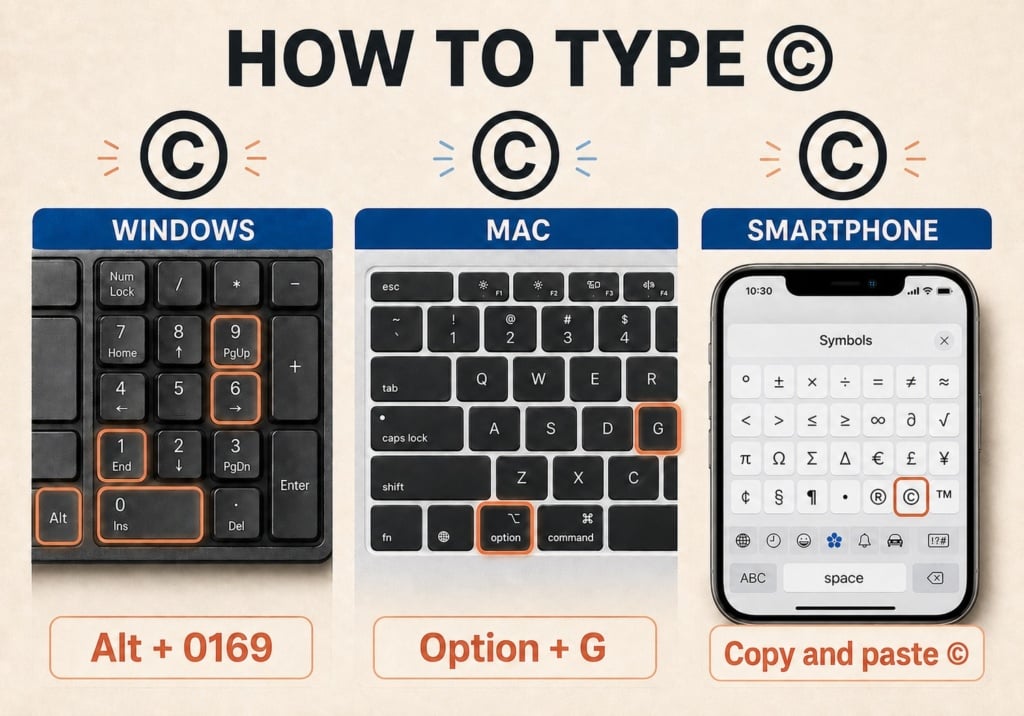
| Windows | Alt + 0169 |
| Mac | Option + G |
| Word for Windows | 00A9, then Alt + X |
| Linux | Ctrl + Shift + U, then 00A9 and Enter |
| HTML | © or © |
| Unicode | U+00A9 |
| Smartphones and tablets | Copy and paste or use the symbols keyboard |
Is the © symbol compulsory? In the UK, generally not. Copyright protection normally arises automatically when an original work is created and recorded, provided the relevant legal requirements are met; it does not depend on displaying the symbol. Using it can nevertheless help communicate ownership clearly.
What the copyright symbol is and what it means
The © symbol is a visual notice used to indicate that content is subject to copyright. Its main function is informative: it tells the public that the work may not be freely copied, altered or distributed unless permission, a licence or another exception under the law applies.
A complete notice may take this form:
© 2026 Name of copyright owner
The three elements indicate, respectively:
- the copyright claim;
- the year associated with the work’s first publication;
- the person or organisation that owns the rights being claimed.
The copyright owner is not necessarily the person who created the work. For example, the economic rights in a photograph, illustration or graphic design may have been assigned by contract to a publisher, company or client. Before writing the notice, it is therefore important to establish who actually owns the relevant rights.
Why a C inside a circle is used
The letter C stands for copyright. The © character is recognised internationally and encoded in the Unicode Standard as U+00A9.
It should not be confused with:
- ®, used for registered trade marks;
- ™, used to claim a sign as a trade mark;
- ℗, which relates to rights in a particular sound recording.
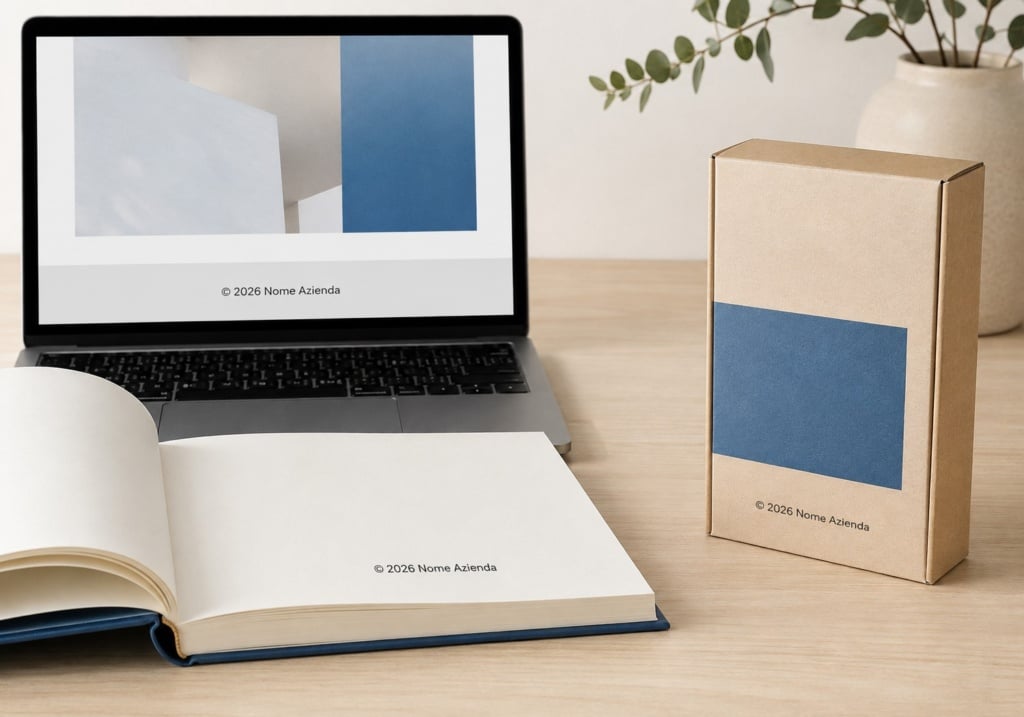
These symbols may appear on the same product, but they communicate different information. Packaging, for example, may display ® next to a registered brand name and © beside illustrations or other creative content.
What types of work it can accompany
The copyright symbol can be associated with many types of creative work, including:
- text, articles and books;
- photographs;
- drawings and illustrations;
- graphic designs;
- music and audiovisual content;
- software;
- websites;
- magazines and catalogues;
- creative elements on labels and packaging;
- brochures and other editorial or promotional materials.
Displaying the symbol does not automatically make every element eligible for protection. Broadly speaking, copyright protects original creative expression that meets the legal requirements, not mere ideas, facts or solutions that have not been expressed as a protectable work.
In brief: the © symbol does not create copyright. It indicates that a work is regarded as protected and helps identify who is claiming the rights.

Copy and paste the copyright symbol
Here is the symbol, ready to copy:
©
If you cannot type it using your keyboard, select the character above, copy it and paste it wherever you need it.
A copyright notice may also use the word Copyright or the abbreviation Copr. The form (c) is often understood in informal communication, but it is not the © character and does not always have the same conventional or technical meaning. Wherever possible, use the proper symbol.
How to type the copyright symbol
The method varies according to the operating system, device and application. If a keyboard shortcut does not work, the quickest alternatives are to copy and paste © or find it in the special characters panel.
How to type the copyright symbol on Windows
On Windows, hold down the Alt key and enter 0169 on the numeric keypad:
Alt + 0169
When you release Alt, © will appear.
This sequence normally requires a numeric keypad with Num Lock enabled. The number keys along the top row of the keyboard may not work with this method.
If you use a laptop without a numeric keypad, you can:
- copy and paste the symbol;
- open Windows Character Map;
- use the symbols panel in your application;
- use a built-in numeric keypad activated with a function key, if available.
How to type the copyright symbol on a Mac
The macOS shortcut is particularly simple:
Option + G
Press the Option key, also labelled Alt on some keyboards, and the letter G at the same time.
Alternatively, open the Character Viewer, search for “copyright” and select ©. The special characters panel is also useful for finding similar symbols, emoji and typographic characters that do not appear on the keyboard.
How to insert the copyright symbol in Microsoft Word
Microsoft Word offers several methods.
In Word for Windows, type:
00A9
and immediately press:
Alt + X
Word will convert the Unicode code into ©. Pressing Alt + X again can convert the character back into its code.
You can also use:
Insert → Symbol → More Symbols
In some configurations, Word automatically replaces (c) with ©. This depends on the AutoCorrect settings and may not be available in every document or on every device.
How to insert the copyright symbol in Google Docs
In Google Docs, you can copy and paste © or use:
Insert → Special characters
Type “copyright” in the search field or draw an approximate version of the symbol in the box provided. Select the result to add it to the document.
Operating-system shortcuts still work: on a Mac, for example, you can use Option + G.
How to type © on iPhone and iPad
On an iPhone or iPad, the quickest method is to copy the symbol and paste it where required.
You can also look for it on the symbols keyboard or use text replacement. If you need it frequently, create a personal shortcut:
- open Settings;
- select General → Keyboard → Text Replacement;
- assign © to an easy-to-remember sequence such as copyr.
When you type the shortcut, the device will automatically suggest the symbol.
How to type © on Android
Character layouts vary by manufacturer and installed keyboard. On many Android keyboards, the symbol is in the numbers and special characters section, sometimes on a second screen.
If it does not appear, you can:
- copy and paste ©;
- look for it in the symbols list;
- create a shortcut in your personal dictionary;
- press and hold the letter C, if your keyboard offers this variation.
How to insert it on Chromebook and Linux
On many Linux systems, use the Unicode sequence:
Ctrl + Shift + U, then 00A9, followed by Enter
On a Chromebook, availability may depend on the text field, keyboard language and system configuration. If you have difficulty, copying and pasting remains the most reliable method.
How to insert the copyright symbol in HTML and CSS
To display © on an HTML page, you can enter the character directly, provided the document uses a suitable character encoding such as UTF-8.
Alternatively, use one of these HTML entities:
©
©
©
All three produce the same result:
©
The © entity is generally the easiest to read in source code.
Unicode and CSS
The Unicode code point for the symbol is:
U+00A9
It can also be inserted in CSS using an escape sequence:
\00A9
For example:
.copyright::before {
content: “\00A9”;
}
This approach can be useful for decorative elements or content generated through CSS. For important information, however, it is preferable to include the notice directly in the HTML so that it remains accessible and understandable even when styles are unavailable.
How to update the year in a footer automatically
To display the current year automatically in a website footer, you can use JavaScript:
<p>© <span id=”copyright-year”></span> Company Name</p>
<script>
document.getElementById(“copyright-year”).textContent =
new Date().getFullYear();
</script>
The result will be:
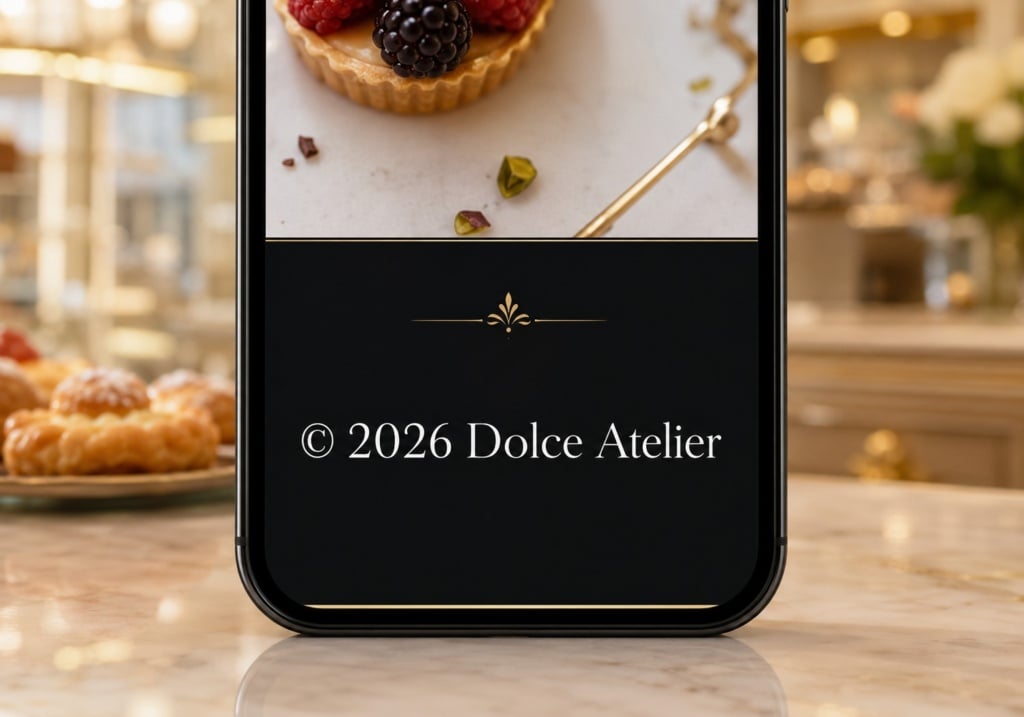
© 2026 Company Name
Do not confuse this visual footer update with the duration of copyright protection. Automatically changing the year neither renews nor extends copyright.
If the website has been online for several years and you want to show the continuity of the project, you can use a range, for example:
© 2020–2026 Company Name
Is the copyright symbol compulsory?
In the UK, copyright protection normally arises automatically when an original work is created and recorded in a qualifying form. There is no official register of copyright works, and displaying © is not required for copyright to subsist.
The same principle applies internationally in countries party to the Berne Convention: the enjoyment and exercise of copyright cannot be made conditional on formalities such as registration, deposit or the inclusion of a copyright notice. WIPO – Summary of the Berne Convention
This means that text, a photograph or an illustration may be protected even when it does not display ©.
Why it is still worth using
The symbol can nevertheless serve several useful purposes:
- it communicates that the content is not freely available for use;
- it identifies who claims ownership of the rights;
- it allows the year of publication to be stated;
- it may discourage unauthorised use;
- it helps the public identify whom to contact for permission;
- it makes the terms of use for a website, image or publication clearer.
Its value is therefore primarily informative and preventive.
Important: the © symbol does not prove, on its own, who created a work. In a dispute, original files, drafts, metadata, contracts, correspondence, dated publications and other material that documents the work’s origin and chronology may all be relevant.
How to write a copyright notice correctly
The simplest formula is:
© [year] [name of copyright owner]
For example:
© 2026 Company Name
You may add a statement about permitted use:
© 2026 Company Name. All rights reserved.
A longer notice does not automatically provide stronger protection. What matters more is that the information is accurate and that the notice does not claim rights belonging to someone else.
Which year should you include?
The traditional copyright notice refers to the year in which the work was first published. For a book first published in 2026, for example, the notice might read:
© 2026 Author Name
The date does not need to be changed every year as though the protection required renewal. If the work is updated, expanded or published in several versions, the appropriate choice depends on the nature of the changes and the context.
For a project developed over time, a range can be used:
© 2020–2026 Company Name
This format is common on websites and in software, but it does not mean that every element was created or updated throughout the entire period.

Whose name should you include?
The notice should identify the owner of the rights being claimed. This may be:
- the author or creator;
- a company;
- a publisher;
- an organisation;
- another party to whom the relevant rights have been assigned.
Before putting a client’s name on a photograph, illustration or graphic design, check the applicable agreement. Paying for content to be produced does not necessarily transfer every right automatically.
Do you need to add “All rights reserved”?
The phrase “All rights reserved” is not normally required for copyright protection to arise. It may be added to indicate that the owner is not granting broad permission, but it does not replace more precise terms of use.
If certain uses are allowed, it is better to set them out in a clear licence.
| Context | Example notice |
| Book | © 2026 Author Name |
| Photograph | © 2026 Photographer Name |
| Illustration | © 2026 Illustrator Name |
| Company website | © 2020–2026 Company Name |
| Catalogue | © 2026 Company Name |
| Packaging | © 2026 Name of copyright owner |
| Software | © 2024–2026 Company Name |
Where to place the copyright symbol
The symbol should appear in a legible position appropriate to the medium. There is no single universally compulsory location: what matters most is that the notice can be found easily and clearly linked to the correct work.
On websites
The footer is the most common location. The notice can link to a page containing terms of use, licensing details and information about third-party content.
Placing © in a footer does not automatically mean that the website owner owns every element on the site. Stock photography, fonts, video, plug-ins and content supplied by contributors may have different owners and licences.
On photographs and images
Copyright information may appear:
- next to the image;
- in the caption;
- in the credits;
- in the file metadata;
- as a watermark.
A watermark makes attribution more visible, but it can affect the image and does not necessarily prevent copying or removal. Metadata is less intrusive, but it may be lost during export or online upload.
In books, magazines and catalogues
The notice usually appears on the copyright page or in the colophon. Rights in the text, photographs, illustrations, translation and graphic design can be listed separately there.
On packaging, labels and printed materials
On packaging, the symbol may appear in the area reserved for legal information or near the credit for the creative element to which it refers.
The notice must remain legible after printing. Check the type size, contrast, bleed and distance from trim lines. © must also not be confused with ®, which may be used to indicate a registered trade mark.
©, ®, ™ and ℗: what is the difference?
The four symbols relate to different areas and are not interchangeable.
| Symbol | Meaning | What it relates to | Registration needed for correct use |
| © | Copyright | Creative works | No |
| ® | Registered trade mark | A trade mark that is actually registered | Yes |
| ™ | Trade mark | A sign claimed as a trade mark | Not necessarily |
| ℗ | Phonogram copyright | A specific sound recording | No, for the right to arise |
The © symbol may relate to the graphic design of packaging, while ® may appear beside a registered name or logo. ℗ protects the sound recording itself, which is distinct from any copyright in the musical composition.
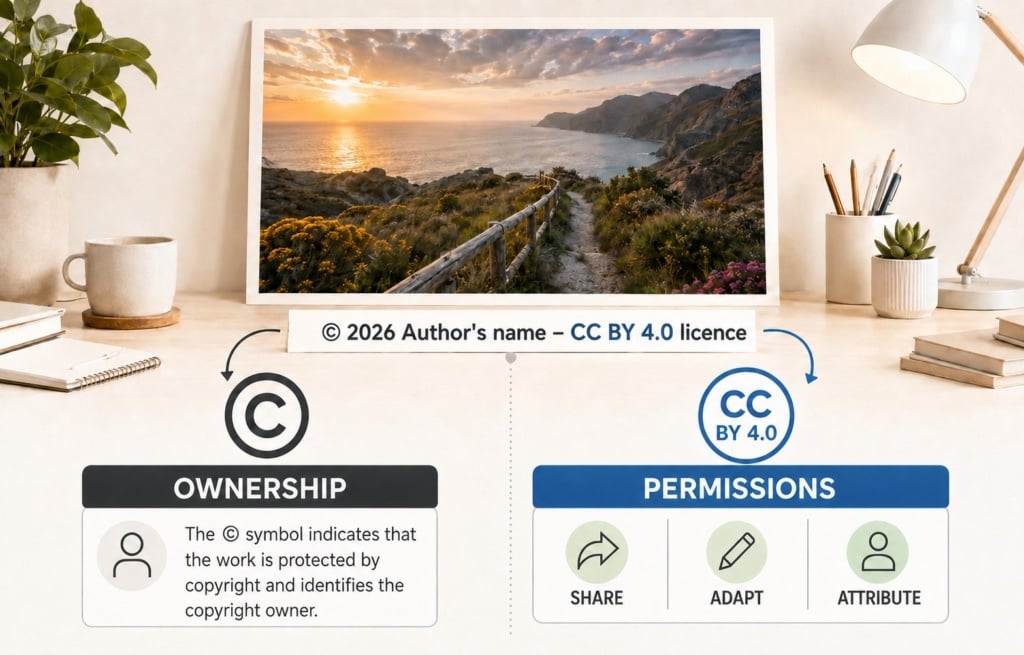
The copyright symbol and Creative Commons licences
The presence of © does not necessarily mean that every use is prohibited. The copyright owner can permit the work to be shared, adapted or used commercially through a licence.
Creative Commons licences provide a standardised way to communicate which uses are permitted and under what conditions, such as requiring attribution or prohibiting adaptations.
The copyright notice may be accompanied by a licence statement:
© 2026 Author Name – Licensed under CC BY 4.0
The symbol identifies the ownership claim, while the licence explains what other people may do.
Conversely, the absence of © or a watermark does not make content free to use. Before reusing an image found online, check its source, creator, licence and any applicable terms.
The most common mistakes when using the copyright symbol
Common misconceptions include:
- believing that the symbol creates copyright;
- assuming that an image without © is free to use;
- confusing copyright with a registered trade mark;
- naming the wrong copyright owner;
- changing the date of an already published individual work every year;
- claiming rights in photographs, fonts or illustrations created by third parties;
- assuming that a footer alone proves authorship;
- relying on a watermark as the only form of protection;
- using ® beside a trade mark that is not registered;
- failing to check the licences for materials used in a graphic design project.
How to use © correctly: final checklist
Before publishing or printing the notice, make sure you can answer yes to these questions:
- Have I checked who owns the rights?
- Have I chosen a year that is consistent with publication?
- Have I stated the copyright owner’s name correctly?
- Is the notice legible and close to the content it relates to?
- Have I distinguished copyright from trade mark rights?
- Have I stated any applicable licences?
- Have I checked the rights in elements created by third parties?
- Have I kept documents and files that help establish how and when the work was created?
The symbol is small, but the message should be clear
The value of © does not lie in creating protection, but in communicating ownership and terms of use clearly.
Using it correctly means choosing the appropriate name and year, placing it where it can be read and not attributing powers to it that it does not have. For effective rights management, the notice should be supported by licences, contracts, credits and properly organised evidence of creation.
FAQs about the copyright symbol
How can I copy the copyright symbol?
Copy it directly from here: ©. Select it and paste it into your document, website or graphic design project.
What is the Alt code for ©?
On Windows, hold down Alt and type 0169 on the numeric keypad. Release Alt and © will appear.
How can I insert © without a numeric keypad?
You can copy and paste it, use Windows Character Map or select Insert → Symbol in the application you are using.
Can I use © if I have not registered the work?
Yes. In the UK, copyright protection is generally automatic and there is no official register of copyright works. Registration is not required to use the symbol, although © does not certify that the claim is valid.
Does the copyright symbol automatically protect content?
No. The symbol signals a claim, but it cannot make content protectable if the relevant legal requirements are not met.
Can I freely use an image that does not display ©?
No. An image may be protected even without the symbol or a watermark. Before using it, identify the source and check the licence and permissions.
Which year should I put in a website copyright notice?
You can use the year of first publication or a range such as © 2020–2026. The current year should not be understood as a renewal of copyright.
Do I need to update the footer notice every year?
No, not in order to maintain protection. Updating it may show that the website is active, but it does not alter the duration of copyright.
Can I put the copyright symbol on my logo?
It may be relevant if you want to indicate copyright in the logo’s original graphic elements. To show that a sign is registered as a trade mark, use ®, but only where the trade mark is actually registered.
What is the difference between © and ®?
© relates to creative works protected by copyright. ® identifies a registered trade mark. The two symbols can appear in the same project, but they serve different purposes.
What does ℗ mean on a record?
℗ indicates rights in the particular sound recording. These are separate from copyright in the musical composition, lyrics or album artwork.
Is “All rights reserved” compulsory?
No. The phrase is informative, but it is generally not necessary for copyright protection to arise.
Does copyright apply to content created with artificial intelligence?
The answer depends on the law and the nature of the human creative contribution. Under UK law, the position can vary according to whether a work has a human author and whether statutory provisions on computer-generated works apply. Because legislation, policy and interpretation in this area continue to develop, commercial or disputed cases should be assessed through specific legal advice.
The information in this article is provided for general guidance and does not constitute legal advice.
Reference sources