

Table of Contents
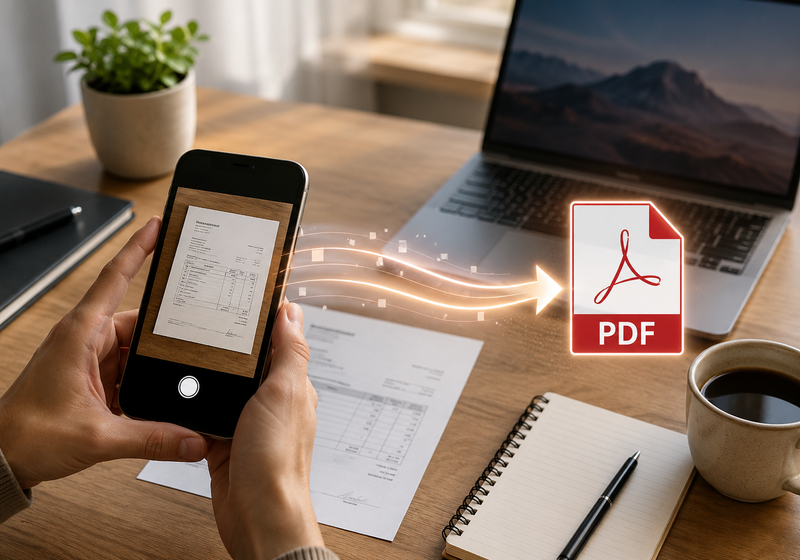
Whether you need to email a document, upload a form to an online portal or archive a receipt, converting a photo to PDF is one of the most common tasks you’ll come across.
PDF is the most widely used format for sharing documents. It preserves the original layout, works on virtually any device and allows you to combine one or more images into a single file.
The good news is that you don’t need any complicated software.
Windows, macOS, Android and iPhone already include everything you need to create a PDF in just a few steps. Alternatively, you can use one of the many free online PDF converters available.
In this guide, you’ll learn how to convert a photo to PDF on the most popular devices, which method to choose for your needs and the best practices for creating a tidy, lightweight document that’s even ready for printing.
At a glance: how to convert a photo to PDF
If you’re looking for the quickest solution, you can convert a photo to PDF using the built-in features available on Windows, macOS, Android and iPhone, or by using online services such as Adobe Acrobat, Smallpdf, iLovePDF and PDF24.
The best option mainly depends on the device you’re using and what you intend to do with the file: share it, archive it or prepare it for printing.
Which method should you choose?
| Device | Recommended method | Do you need to install software? |
| Windows | Microsoft Print to PDF | No |
| Mac | Preview | No |
| Android | Save as PDF | No |
| iPhone | Print menu / Files | No |
| Any device | Online PDF converter | No |
In the following sections, we’ll look at how each method works and when it’s the best option.
Why convert a photo to PDF?
Converting an image to PDF is about much more than simply changing its file format. It makes the document easier to share, store and print.
Unlike a JPG or PNG image, a PDF preserves the document’s layout, supports multiple pages and is the format most commonly requested by businesses, public authorities, schools and online services.
For example, it’s ideal for:
- emailing photographed documents;
- uploading forms or certificates to an online portal;
- archiving receipts, invoices and tickets;
- combining multiple images into a single file;
- creating a portfolio or presentation;
- preparing a document for printing.
PDF or JPG: which format should you choose?
JPG and PDF serve different purposes.
JPG is ideal for sharing a single photograph, while PDF is designed for complete documents, preserving both structure and layout.
| JPG | |
| Best for a single image | Best for documents and collections of images |
| Ideal for websites and social media | Ideal for email, archiving and printing |
| One file per image | Multiple images in one document |
| Easy to edit | Preserves the original layout |
If you’re simply sharing a photograph, JPG is usually sufficient. However, if the image represents a document or needs to be printed, PDF is generally the better choice.
Before converting: prepare your photo
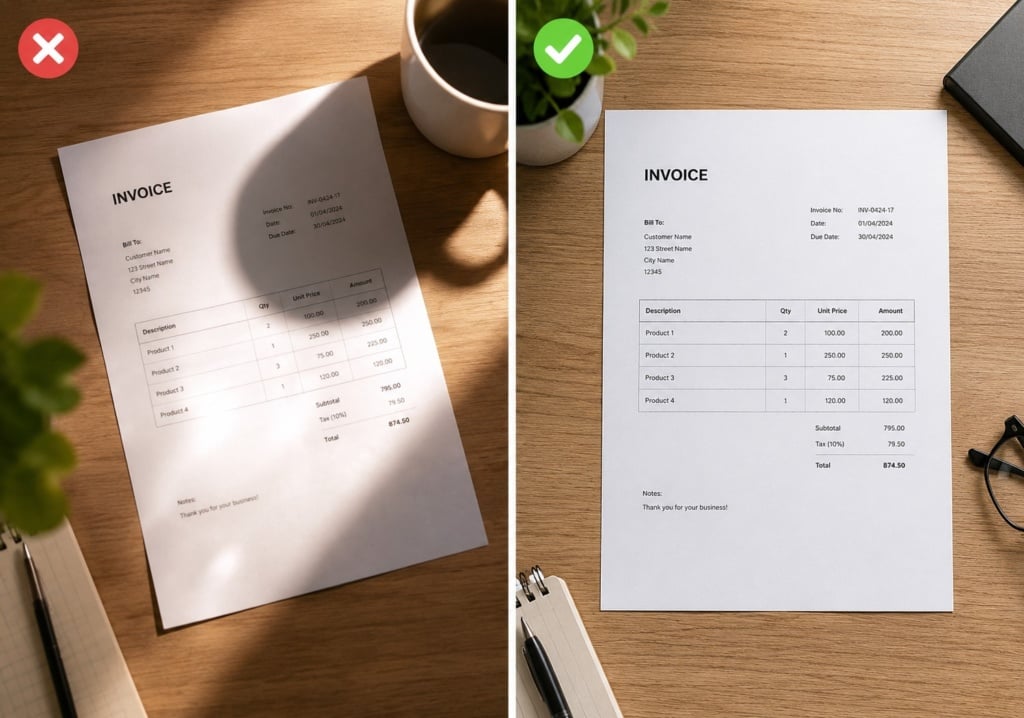
The quality of your PDF depends entirely on the quality of the original image. Converting a blurry or poorly aligned photo won’t improve the final result.
Before creating your PDF, make sure that:
- the image is well lit and in focus;
- the document has been photographed straight on;
- there are no reflections or shadows affecting readability;
- any unnecessary borders have been cropped;
- all text is perfectly legible.
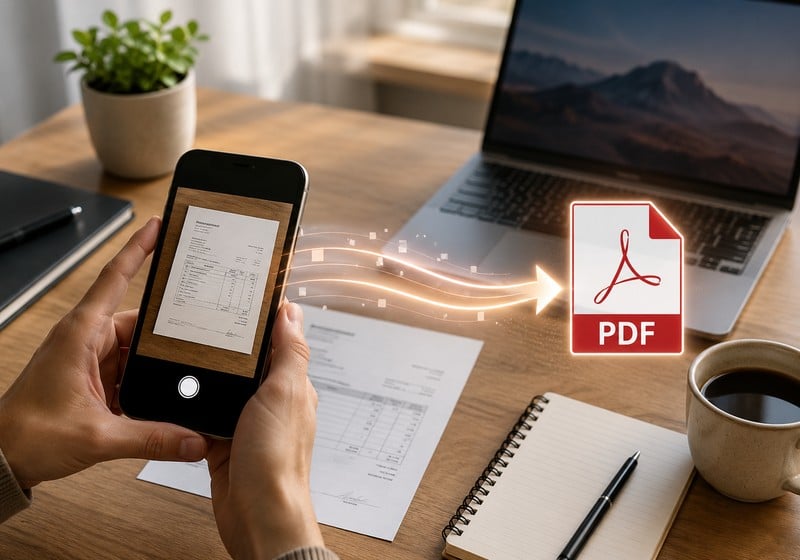
If you’re photographing paper documents, it’s worth using the built-in Document Scanner available on many smartphones. These tools automatically correct perspective and improve contrast and readability, helping you produce a much cleaner and more professional-looking PDF.
How to Convert a Photo to PDF on Windows
If you’re using a Windows PC, you can create a PDF without installing any additional software thanks to Microsoft Print to PDF, the virtual printer included in recent versions of Windows.
Using Microsoft Print to PDF
- Open the photo in the Photos app or any other image viewer.
- Select Print.
- Choose Microsoft Print to PDF as your printer.
- Set the page size, orientation and image layout.
- Click Print, choose where to save the file and confirm.
Your PDF will be created in just a few seconds.
When should you use this method?
It’s the ideal solution if you want to:
- convert one or more images quickly;
- work offline;
- create a PDF without installing extra software;
- keep your files on your computer without uploading them online.
If you need to combine several photos into a single document, simply select them together in File Explorer and follow the same process, arranging them in the desired order before saving.
How to Convert a Photo to PDF on Mac
On macOS, you can use Preview, the built-in app that lets you view images and create PDF files.
Convert a Single Photo
- Open the image in Preview.
- Go to File > Export as PDF (or use the Print function and save the file as a PDF, depending on your version of macOS).
- Choose a file name and save location.
- Save the document.
Create a PDF from Multiple Images
Preview also allows you to combine several images into a single PDF. Simply open the images, arrange them in the correct order and export them as a PDF.
This is particularly useful when you want to combine scanned pages, receipts or multiple pages from the same document.
How to Convert a Photo to PDF on Android
Most Android smartphones include a built-in feature for creating PDF files, so there’s usually no need to install extra apps.
Using “Save as PDF”
- Open the photo in your Gallery app.
- Tap Share or the three-dot menu.
- Select Print.
- Choose Save as PDF.
- Save the file to your device.
The wording may vary slightly depending on your phone’s manufacturer, but the process is very similar across most Android devices.
Scan a Document with Google Drive
If you need to digitise a paper document, Google Drive includes a built-in scanner that can:
- automatically detect the page edges;
- correct perspective;
- improve contrast and readability;
- save the scanned document directly as a PDF.
It’s an excellent option for contracts, forms, receipts and certificates.
How to Convert a Photo to PDF on iPhone
iPhones also include built-in tools for creating PDF files without the need for third-party apps.
Using the Print Menu
- Open the photo in the Photos app.
- Tap Share.
- Select Print.
- Open the print preview in full screen (the gesture may vary slightly depending on your version of iOS).
- Tap Share again.
- Save the file to the Files app.
Within seconds, you’ll have a PDF ready to share or store.
Scan Documents with the Notes App
If you’re starting with a paper document, you can use the Scan Documents feature in the Notes app.
This tool:
- automatically detects page edges;
- corrects perspective;
- improves contrast;
- creates a PDF automatically.
It’s one of the quickest and most effective ways to produce a clean, easy-to-read digital copy.
Which Method Should You Choose?
For most everyday tasks, the built-in tools available on Windows, macOS, Android and iPhone are more than enough. They’re free, easy to use and don’t require you to upload your files to external services.
However, if you need additional features such as compressing, editing or merging PDF files, or performing Optical Character Recognition (OCR), a dedicated online PDF converter may be the better choice.
How to Convert a Photo to PDF Online
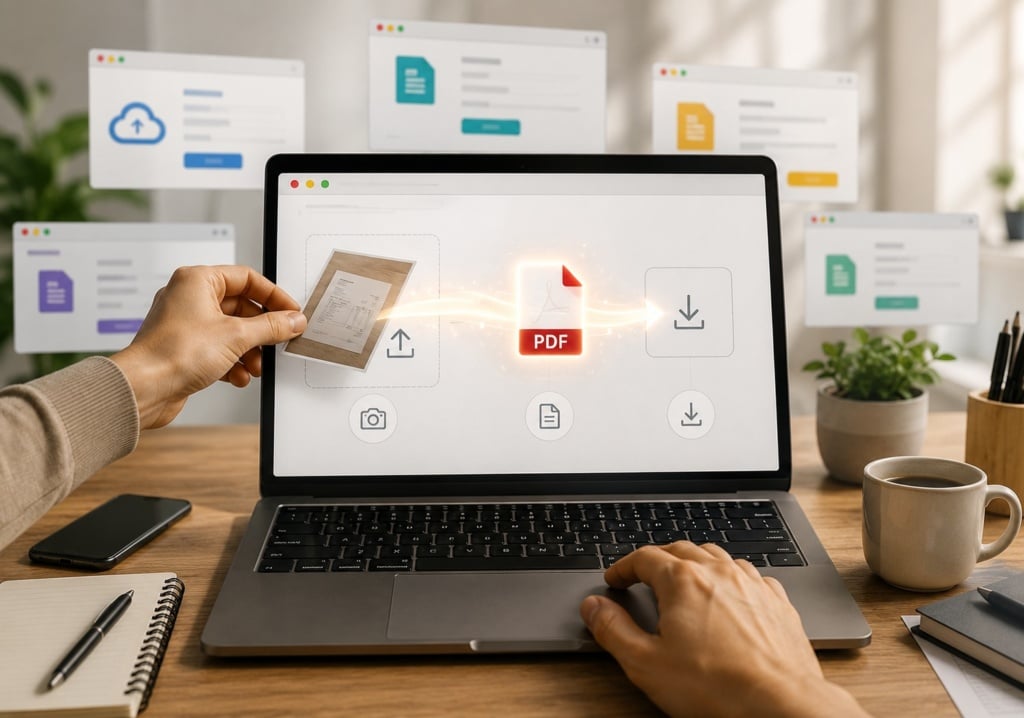
If you’d rather not install any software, or you’re using a shared device, you can convert a photo to PDF directly from your web browser.
The process is very similar across all online tools:
- Upload one or more images.
- Arrange them in the order you want.
- Start the conversion.
- Download the PDF file.
Most online converters work equally well on both computers and mobile devices.
The Best Online PDF Converters
As well as converting images into PDFs, many of these services also let you compress, merge and edit PDF files.
| Service | Free | Multiple images | Additional features | Best for |
|---|---|---|---|---|
| Adobe Acrobat Online | ✓ | ✓ | Compression, editing and e-signatures | Anyone looking for a complete solution |
| Smallpdf | ✓* | ✓ | Compression, merging and editing | Occasional use |
| iLovePDF | ✓ | ✓ | OCR, merging, splitting and compression | Frequent PDF users |
| PDF24 Tools | ✓ | ✓ | Wide range of free PDF tools | Frequent conversions |
| Canva | ✓ | Limited | Graphic layout and design | Portfolios and presentations |
*Some features may be limited in the free version.
How to Reduce the Size of a PDF
If your PDF contains high-resolution images, it may become too large to send by email or upload to certain websites.
To reduce the file size, you can:
- compress the PDF using dedicated tools (including the services mentioned above);
- reduce the image resolution before converting the file;
- remove unnecessary pages or images;
- avoid using images that are much larger than the final page size.
Be careful not to over-compress the file, though. Excessive compression can reduce image quality and make text harder to read, particularly if the PDF is intended for printing.
Common Problems and How to Fix Them
You may occasionally run into minor issues when converting a photo to PDF. Fortunately, most of them are easy to solve.
| Problem | Possible Cause | Solution |
| The PDF file is too large | High-resolution images | Compress the PDF or reduce the image size |
| Images look blurry | The original photo is low quality | Use the original image and avoid excessive compression |
| Part of the image is cropped | Incorrect page size or orientation | Check the print settings before exporting |
| The document is rotated | Incorrect image orientation | Rotate the image before converting it |
| Colours don’t look right | Compression or colour profile conversion | Use a reliable converter and avoid repeated conversions |
One Small Check That Makes a Big Difference
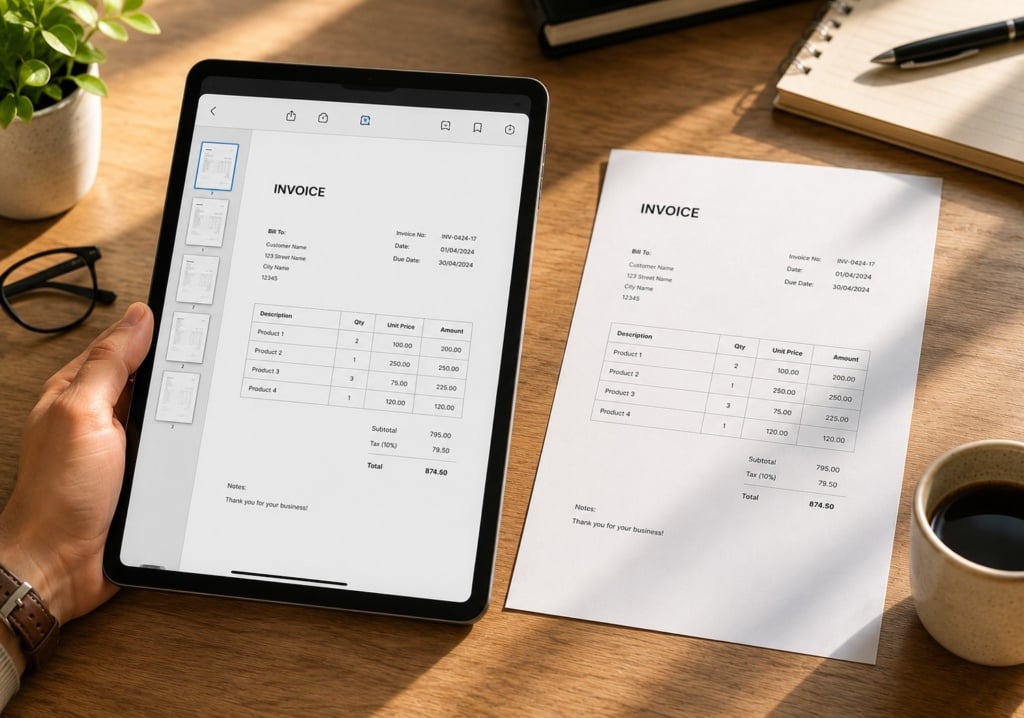
Before sharing your PDF, open it and review every page.
A quick check will help you spot missing pages, incorrect page order or orientation issues before sending the file, saving you the hassle of having to repeat the process later.
How to Prepare a PDF for High-Quality Printing
If your goal is to print the PDF, converting the image is only the final step. The quality of the finished result depends largely on the original image and how well you prepare the document before exporting it.
Here are the key points to keep in mind.
Start with a High-Quality Image
A PDF won’t improve a blurry or low-resolution photo. Before converting it, make sure the image:
- is well lit and in focus;
- has no reflections or shadows across the document;
- has been photographed straight on;
- has a resolution suitable for its intended use.
If your PDF includes photographs, avoid using images downloaded from social media or received through messaging apps, as they’ve often been compressed and may lose detail when printed.
Choose the Right Page Size
Before creating your PDF, select a page size that matches its intended purpose.
For example:
- A4 is ideal for documents, forms and reports;
- A5 works well for small booklets or brochures;
- a custom page size may be the best option for a specific print project.
Choosing the correct page size from the outset helps prevent cropping and scaling issues.
Avoid Excessive Compression
Reducing the file size can make your PDF easier to share, but compressing images too heavily may noticeably reduce their quality.
If the document is intended for print, aim for the right balance between file size and image quality.
Check the PDF Before Sending It
Before sharing your document, make sure that:
- all pages are included;
- the page order is correct;
- images aren’t rotated or cropped;
- all text is clear and easy to read.
A quick review only takes a few seconds and can save you from having to repeat the process later.
If Your PDF Is Intended for a Print Project
If you’re using the PDF to produce a catalogue, portfolio, leaflet or any other printed product, it’s worth spending a little extra time preparing the file properly.
In particular:
- use high-resolution images;
- avoid enlarging small photographs;
- maintain the original image proportions;
- make sure important content remains within the printable area.
Preparing your PDF correctly from the start helps ensure a more accurate printed result and reduces the need for last-minute adjustments.
Mistakes to Avoid
Before converting your photo to PDF, run through this final checklist.
- ✓ Use the original photo rather than a screenshot.
- ✓ Make sure the image is sharp and well lit.
- ✓ Remove unnecessary borders and backgrounds.
- ✓ Check the page orientation.
- ✓ Keep all images in the document in the same orientation.
- ✓ Avoid excessive compression.
- ✓ Always open the finished PDF before sending it.
This simple checklist can help you avoid the most common problems.
Frequently Asked Questions
How can I convert a photo to PDF for free?
You can use the built-in tools available on Windows, macOS, Android and iPhone, or online services such as Adobe Acrobat, Smallpdf, iLovePDF and PDF24.
Can I create a PDF without installing any software?
Yes. All major operating systems include built-in features that let you create PDF files directly from images.
How do I create a PDF from multiple photos?
Select all the images you want to include and use your device’s Print to PDF feature or an online converter that supports multi-page PDF documents.
Will converting a photo to PDF reduce its quality?
Generally, no. The final quality depends mainly on the original image and the level of compression applied during the conversion process.
Is it better to use an online converter or my device’s built-in tools?
If your document contains sensitive information, it’s usually best to use your computer’s or smartphone’s built-in tools, as your files never leave the device. Online converters are a better choice when you need additional features, such as editing, merging or compressing PDF files.
How can I reduce the size of a PDF?
You can compress the document using dedicated PDF tools or reduce the image resolution before converting it. If the PDF is intended for printing, avoid excessive compression to preserve image quality.
From photo to PDF: simple, with just a few tips
Converting a photo to PDF is quick and straightforward, but choosing the right method will help you create a document that’s easier to share, better organised and suited to your specific needs.
For most everyday tasks, the built-in tools available on Windows, macOS, Android and iPhone are the simplest and most convenient option. If you need to combine multiple images, compress the file or edit the document, there are plenty of reliable online services available.
Finally, if your PDF is intended for printing, take a few extra minutes to prepare the file properly. Using high-quality images, choosing the correct page size and checking the document before sending it are simple steps that can make a significant difference to the final printed result.